
WordPress Admin Access by IP Address with NGINX

Security is more important than ever, primarily when you use WordPress for your website. In the past months and years, you have read quite often that WordPress gets hacked, mostlybecause of vulnerabilities in third-party plugins.
To prevent code injections via WordAdmin Admin, it's highly recommended to restrict the Admin Access by known IPs that a Brute-force attack isn't possible.
In this tutorial, you will learn how to configure the CloudPanel NGINX Vhost to restrict the WordPress Admin Access by IP.
Step 1 - Login into CloudPanelStep 2 - Vhost ChangesTesting
Step 1 - Login into CloudPanel
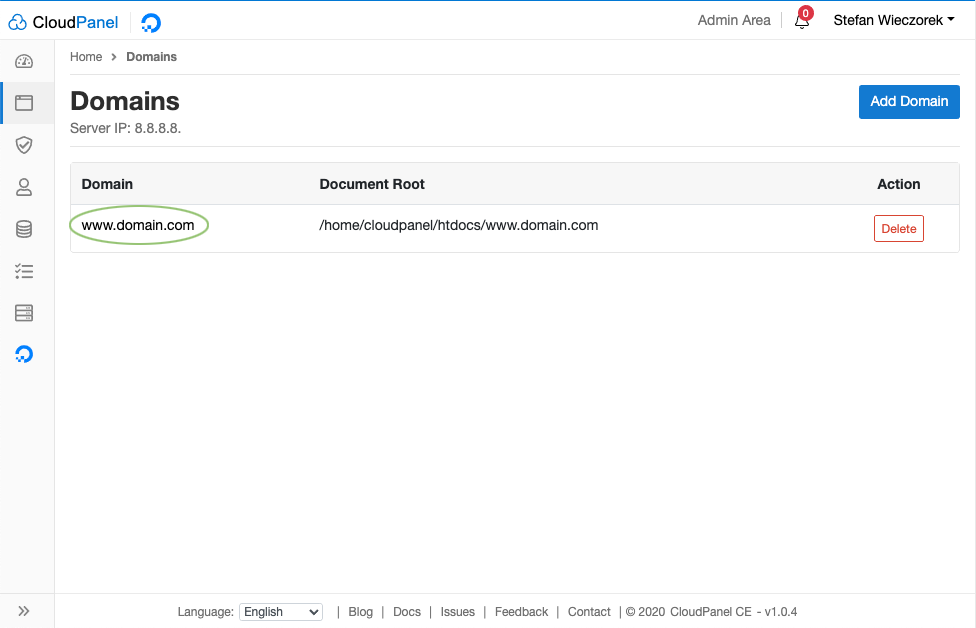
First, login into CloudPanel and click on the Domain where WordPress is installed.
Step 2 - Vhost Changes
In the next step, open the Vhost Editor, that we can make changes on the NGINX Vhost.
By default, the vhost looks like the following one:
server {
listen 80;
listen [::]:80;
listen 443 ssl http2;
listen [::]:443 ssl http2;
{{ssl_certificate_key}}
{{ssl_certificate}}
server_name www.domain.com www1.domain.com;
{{root}}
{{nginx_access_log}}
{{nginx_error_log}}
if ($bad_bot = 1) {
return 403;
}
if ($scheme != "https") {
rewrite ^ https://$host$uri permanent;
}
location ~ /.well-known {
auth_basic off;
allow all;
}
{{basic_auth}}
try_files $uri $uri/ /index.php?$args;
index index.php index.html;
location ~ .php$ {
include fastcgi_params;
fastcgi_intercept_errors on;
fastcgi_index index.php;
fastcgi_param SCRIPT_FILENAME $document_root$fastcgi_script_name;
try_files $uri =404;
fastcgi_read_timeout 3600;
fastcgi_send_timeout 3600;
fastcgi_param HTTPS $fastcgi_https;
{{php_fpm_listener}}
{{php_settings}}
}
location ~* ^.+.(css|js|jpg|jpeg|gif|png|ico|gz|svg|svgz|ttf|otf|woff|eot|mp4|ogg|ogv|webm|webp|zip|swf)$ {
add_header Access-Control-Allow-Origin ""; expires max; access_log off; } if (-f $request_filename) { break; }}We add the following lines after the {{basic_auth}} placeholder:location ~ /(wp-login|wp-admin/) { allow 8.8.8.8; # Company Office allow 6.6.6.6; # Home Office deny all; location ~ .php$ { include fastcgi_params; fastcgi_intercept_errors on; fastcgi_index index.php; fastcgi_param SCRIPT_FILENAME $document_root$fastcgi_script_name; try_files $uri =404; fastcgi_read_timeout 3600; fastcgi_send_timeout 3600; fastcgi_param HTTPS $fastcgi_https; {{php_fpm_listener}} {{php_settings}} }}TipAdd a comment behind each IP to know who it belongs to.In the lines above, we have added a location for wp-login and wp-admin.All URLS that contains wp-login or wp-admin are only accessible for the IPs 8.8.8.8 and 6.6.6.6.The final vhost should look like this😖erver { listen 80; listen [::]:80; listen 443 ssl http2; listen [::]:443 ssl http2; {{ssl_certificate_key}} {{ssl_certificate}} server_name www.domain.com www1.domain.com; {{root}} {{nginx_access_log}} {{nginx_error_log}} if ($bad_bot = 1) { return 403; } if ($scheme != "https") { rewrite ^ https://$host$uri permanent; } location ~ /.well-known { auth_basic off; allow all; } {{basic_auth}} location ~ /(wp-login|wp-admin/) { allow 8.8.8.8; # Company Office allow 6.6.6.6; # Home Office deny all; location ~ .php$ { include fastcgi_params; fastcgi_intercept_errors on; fastcgi_index index.php; fastcgi_param SCRIPT_FILENAME $document_root$fastcgi_script_name; try_files $uri =404; fastcgi_read_timeout 3600; fastcgi_send_timeout 3600; fastcgi_param HTTPS $fastcgi_https; {{php_fpm_listener}} {{php_settings}} } } try_files $uri $uri/ /index.php?$args; index index.php index.html; location ~ .php$ { include fastcgi_params; fastcgi_intercept_errors on; fastcgi_index index.php; fastcgi_param SCRIPT_FILENAME $document_root$fastcgi_script_name; try_files $uri =404; fastcgi_read_timeout 3600; fastcgi_send_timeout 3600; fastcgi_param HTTPS $fastcgi_https; {{php_fpm_listener}} {{php_settings}} } location ~ ^.+.(css|js|jpg|jpeg|gif|png|ico|gz|svg|svgz|ttf|otf|woff|eot|mp4|ogg|ogv|webm|webp|zip|swf)$ {
add_header Access-Control-Allow-Origin "*";
expires max;
access_log off;
}
if (-f $request_filename) {
break;
}
}
Testing
To check if the restriction is working as expected, we can remove our IP from the location and send a cURL request to see the 403 status code.
We send a GET request via cURL to wp-login.php:
curl -Ik https://www.domain/wp-login.php
In the response we see the 403 status code as expected:
HTTP/2 403
server: nginx
date: Wed, 23 Dec 2020 08:08:08 GMT
content-type: text/html
content-length: 146
vary: Accept-Encoding
Instead of using cURL you can also open the URL in your browser to see the 403.